
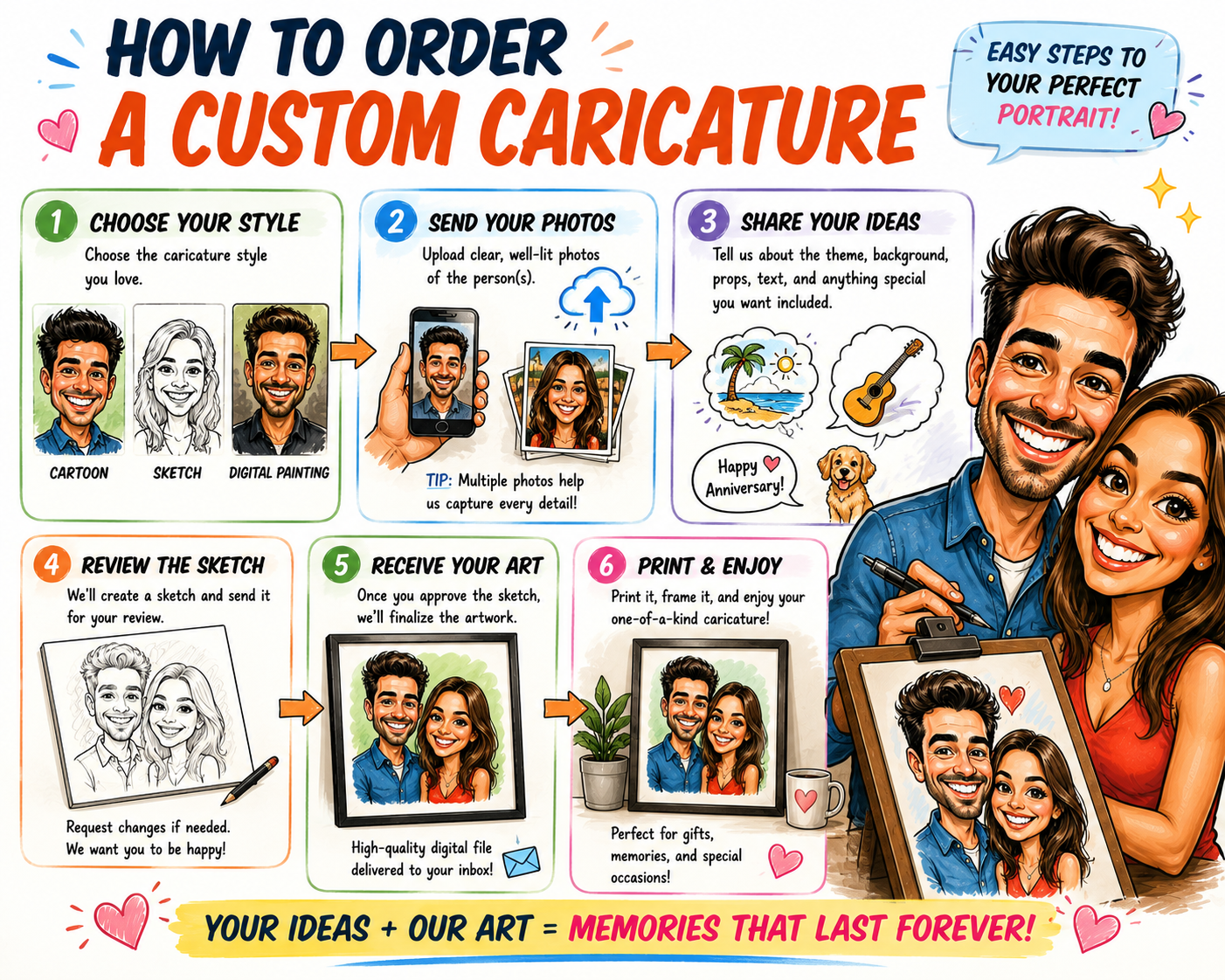
Digital caricature art combines portrait drawing, creative exaggeration, and modern technology. With the right software, artists can enlarge smiles, reshape faces, experiment with expressions, add colorful backgrounds, and correct mistakes without starting over.
There are many digital drawing programs available, but the best caricature software depends on your experience, preferred device, artistic style, and budget. Some programs are designed for detailed painting, while others specialize in smooth line art, simple cartoon portraits, or fast mobile drawing.
This guide compares popular digital art programs and explains what to look for when choosing software for funny portraits and personalized caricatures.
What Is Digital Caricature Art?
A digital caricature is an exaggerated portrait created on a computer, tablet, or mobile device. The artist studies a real person and emphasizes the facial features, expressions, accessories, or personality traits that make the subject recognizable.
A person with a wide smile may receive an even larger grin. Someone with distinctive glasses, curly hair, expressive eyebrows, or a strong chin may have those features emphasized.
Digital tools allow artists to sketch on separate layers, resize features, move facial elements, test colors, add textures, and prepare finished artwork for printing or online sharing.
What to Look for in Caricature Drawing Software
Caricature artists do not necessarily need the most expensive program. They need software that supports their preferred creative process.
Useful features include:
- Pressure-sensitive brushes
- Multiple drawing layers
- Selection and transformation tools
- Customizable pens and pencils
- Color adjustment controls
- Blending and shading tools
- High-resolution canvas sizes
- Common export formats such as PNG, JPEG, PDF, and layered files
- Reference image support
- Easy undo and revision controls
Popular Digital Caricature Software Compared
| Software | Best For | Skill Level | Main Advantage |
|---|---|---|---|
| Adobe Photoshop | Detailed painting and photo-based artwork | Intermediate to advanced | Powerful editing and transformation tools |
| Procreate | Portable iPad drawing | Beginner to professional | Natural drawing experience and simple interface |
| Clip Studio Paint | Line art, cartoons, comics, and illustration | Beginner to advanced | Strong inking, brush, and reference tools |
| Krita | Free digital painting | Beginner to advanced | Capable open-source art tools |
| Adobe Fresco | Touchscreen drawing and painting | Beginner to intermediate | Portable sketching with natural brush effects |
| Vector Illustration Software | Clean, scalable cartoon portraits | Intermediate | Artwork can be resized without losing sharpness |
1. Adobe Photoshop
Best for Detailed Caricature Painting and Photo Editing
Adobe Photoshop is a versatile option for artists who want to combine drawing, painting, photo editing, and facial transformation in one program.
Artists can place a reference photograph on one layer, create a sketch on another, and add line art, color, shading, and background elements on additional layers. Selection and transformation tools make it possible to enlarge eyes, reshape the jaw, widen a smile, or adjust the overall head shape.
Photoshop is especially useful for painted caricatures, highly detailed portraits, promotional illustrations, and artwork that combines photographs with hand-drawn elements.
The large number of tools may feel overwhelming to a complete beginner. New artists can begin with only a few basics: brush, eraser, layers, selection, transform, and color controls.
Good choice for: Professional commissions, detailed painting, photo manipulation, advertising artwork, and print-ready caricatures.
2. Procreate
Best for Drawing Caricatures on an iPad
Procreate is popular with artists who prefer drawing directly on an iPad. Its touchscreen controls and streamlined interface make it easy to sketch, ink, color, and refine a portrait without being tied to a desktop computer.
Artists can import a photograph, reduce its opacity, and sketch on a new layer. Features for stabilizing lines, creating shapes, managing layers, and customizing brushes can help produce both loose caricature sketches and polished illustrations.
Procreate works well for event sketches, social media portraits, personalized gifts, and artists who enjoy drawing while traveling.
Good choice for: iPad users, portable drawing, quick portraits, colorful illustrations, and artists who prefer a natural sketching experience.
3. Clip Studio Paint
Best for Clean Line Art, Cartoons, and Comics
Clip Studio Paint is designed for illustration, character art, comics, and animation. It is particularly useful for caricature artists who value smooth line work and adjustable drawing tools.
Its brush controls can help artists create bold outlines, delicate facial details, expressive hair, and confident ink strokes. Artists can also use reference materials and pose tools when building a full-body caricature.
This software is a strong option for people who want to turn caricature characters into comic panels, greeting cards, stickers, web illustrations, or short animations.
Good choice for: Cartoon-style caricatures, comic illustrations, smooth inking, character design, and artwork that may later be animated.
4. Krita
Best Free Software for Digital Caricature Painting
Krita is a free, open-source digital painting program. It provides brushes, layers, color tools, selection controls, and other features artists can use to create caricatures from beginning to end.
The program is useful for beginners who want to explore digital art without immediately paying for a subscription or premium application.
Artists can use Krita for pencil-style sketches, inked cartoon portraits, painted caricatures, and colorful illustrations. Because it is a full digital painting program, there may still be a learning curve, but tutorials and regular practice can make the interface easier to understand.
Good choice for: Budget-conscious artists, students, hobbyists, desktop users, and anyone looking for capable free painting software.
5. Adobe Fresco
Best for Touchscreen Sketching and Natural Brush Effects
Adobe Fresco is designed for drawing and painting on touch and stylus devices. Its portable workflow makes it useful for sketching faces, testing exaggerations, and creating expressive painted portraits.
Caricature artists can use separate layers for construction lines, clean drawing, color, shadows, and highlights. Natural-looking brush effects can give finished portraits a watercolor, ink, pencil, or painted appearance.
Good choice for: Touchscreen artists, portable sketching, painterly portraits, and people who want a straightforward drawing environment.
6. Vector Illustration Software
Best for Clean and Scalable Cartoon Portraits
Vector illustration software creates artwork with editable paths and shapes rather than traditional painted pixels. This allows the finished image to be enlarged for posters, banners, signs, shirts, and merchandise without becoming blurry.
Vector tools are useful for simplified caricatures with bold outlines, flat colors, clean shadows, and graphic shapes. They are also practical for business mascots, logos, stickers, promotional artwork, and product designs.
Drawing with vector paths can feel less natural than sketching with a digital pencil. Many artists create the original sketch in a painting program and then rebuild or trace the design with vector tools.
Good choice for: Merchandise, logos, large-format printing, stickers, business mascots, and polished cartoon portraits.
What Is the Best Free Caricature Software?
Krita is one of the strongest free choices for artists who want a complete digital painting environment. It can be used for sketches, line art, color, shading, and high-resolution finished illustrations.
Simple browser-based drawing applications can also help beginners practice, but they may provide fewer brush controls, layers, export choices, and professional editing features.
When choosing a free program, make sure it supports the canvas size and file type needed for your project. Artwork intended for printing generally requires a larger canvas than an image created only for social media.
What Is the Best Caricature App for Beginners?
Beginners should look for a program with a clear interface, simple layer controls, brush stabilization, easy resizing, and a reliable undo feature.
Procreate can be approachable for artists who already own a compatible iPad and stylus. Krita is a practical option for people who want to begin on a desktop or laptop without purchasing drawing software.
The easiest application is usually the one that works well with the equipment you already own.
Do You Need a Drawing Tablet?
A drawing tablet is not absolutely required, but it can make digital caricature drawing feel more natural. Pressure sensitivity allows artists to create thin and thick lines by changing how firmly they press the stylus.
A pen display lets the artist draw directly on the screen. A traditional graphics tablet requires the artist to draw on the tablet while looking at a separate monitor.
Beginners can also practice with a touchscreen, mouse, or trackpad. However, a stylus generally provides better control for facial lines, hair, eyes, and small expressions.
How to Create a Digital Caricature From a Photo
Step 1: Select a Clear Reference Photo
Choose a sharp, well-lit image that clearly shows the face. A natural smile or expressive pose will usually produce a more interesting caricature than a stiff identification-style photograph.
Step 2: Study the Head Shape
Decide whether the face is round, narrow, long, square, triangular, or heart-shaped. The overall head shape should guide the rest of the portrait.
Step 3: Identify Distinctive Features
Look for the features that make the person recognizable. These may include the smile, eyes, nose, cheeks, chin, eyebrows, hairstyle, glasses, or facial hair.
Step 4: Create a Rough Sketch
Use a light pencil-style brush to explore different exaggerations. Avoid adding small details too early.
Step 5: Transform and Adjust
Use selection and transformation tools to test larger eyes, a wider smile, fuller cheeks, or a different head proportion. Make changes gradually so the subject remains recognizable.
Step 6: Add Clean Line Art
Create a new layer and trace the strongest lines with a smooth pen or ink brush. Use thicker lines around the outer silhouette and thinner lines for facial details.
Step 7: Apply Color and Shading
Place flat colors beneath the line-art layer. Add simple shadows under the hair, nose, chin, and clothing to create depth.
Step 8: Add Personality
Include clothing, accessories, hobbies, pets, or background details that tell viewers something about the person.
Step 9: Export the Final Artwork
Save an editable version with its layers intact. Export a separate PNG or JPEG copy for online sharing or printing.
Automatic Photo Effects vs. Hand-Drawn Caricatures
Some applications can automatically apply cartoon filters or alter facial proportions. These tools are useful for entertainment, quick experiments, and creative inspiration.
However, automatic effects may exaggerate features randomly. They may not understand which facial details are most important to the subject's likeness or personality.
A hand-drawn caricature gives the artist more control. The artist can decide which features to emphasize, how flattering or humorous the result should be, and which personal details belong in the finished scene.
How AI Can Assist a Caricature Artist
AI-assisted tools can help artists explore composition ideas, background concepts, color combinations, costumes, and possible character poses. They can also provide inspiration for different visual styles.
The artist should still make deliberate creative decisions. A successful caricature depends on observation, recognizable likeness, meaningful exaggeration, and an understanding of the subject's personality.
AI is most useful as part of a larger creative workflow rather than as a replacement for artistic judgment.
Recommended Layer Setup
A simple digital caricature file can use the following layer structure:
- Reference layer: The original photograph.
- Rough sketch layer: Basic shapes and exaggeration ideas.
- Clean line-art layer: Final outlines and facial details.
- Flat color layer: Skin, hair, clothing, and accessories.
- Shadow layer: Simple depth and form.
- Highlight layer: Eyes, hair, skin, and shiny objects.
- Background layer: Setting, shapes, or decorative color.
Naming each layer can save time when revising a commission or preparing artwork for a customer.
Choosing Software for Professional Caricature Work
Artists who plan to sell digital caricatures should consider more than drawing features. The software should support large canvas sizes, organized layers, accurate color, common file formats, and reliable backups.
Clients may request changes to clothing, text, colors, facial expressions, or background objects. A well-organized digital file makes those revisions easier.
Artists creating merchandise may benefit from vector artwork, transparent backgrounds, and high-resolution exports. Artists producing printable portraits should confirm the required dimensions before beginning.
Tips for Better Digital Caricatures
- Spend time observing before you begin drawing.
- Exaggerate only the most distinctive features.
- Use separate layers for sketching, line art, color, and shading.
- Flip the canvas occasionally to spot proportion problems.
- Zoom out regularly to check the overall likeness.
- Keep a copy of the original layered file.
- Use high-resolution settings for printable artwork.
- Practice several versions of the same face.
- Use accessories and poses to communicate personality.
- Avoid depending entirely on automatic filters.
Frequently Asked Questions
What is the best software for drawing caricatures?
The best choice depends on your device and artistic style. Photoshop is useful for detailed editing and painting, Procreate is convenient for iPad drawing, Clip Studio Paint is strong for line art and illustration, and Krita is a capable free option.
Can beginners create digital caricatures?
Yes. Beginners can start with a simple drawing application, a clear reference photograph, and separate layers for the sketch, line art, color, and shading.
Do I need to know how to draw realistic portraits?
Realistic portrait experience is helpful but not required. Understanding head shapes, facial proportions, expressions, and distinctive features is more important than producing perfect realism.
Can I turn a photograph into a caricature automatically?
Some tools can apply automatic cartoon or distortion effects. Hand-drawn adjustments usually create a more personal and recognizable result because the artist controls which features are exaggerated.
What file format should I use?
Keep an editable layered file for future changes. Export PNG files when you need transparency and JPEG files for simple online sharing. Printing requirements may vary depending on the product and service.
Can I sell digital caricatures created with drawing software?
Artists commonly sell personalized caricatures as downloadable portraits, printed gifts, event artwork, social media images, business illustrations, and merchandise. Always follow the software's licensing terms and obtain permission to use reference photographs.
Final Thoughts
The best digital caricature software is the program that fits your device, budget, experience, and creative goals. Photoshop offers extensive editing options, Procreate provides a portable iPad workflow, Clip Studio Paint supports expressive line art, and Krita gives artists a capable free alternative.
No program can replace careful observation. Strong caricatures come from identifying the subject's most recognizable features, exaggerating them with purpose, and using expression, color, pose, and personal details to tell a visual story.
Begin with the tools you already have, practice with different faces, and gradually build a digital workflow that helps you create funny portraits filled with personality.
Caricature Related Articles
- 20 Caricature Artist Tips for Capturing Personality
- Best Digital Caricature Software for Funny Portraits
- Biggest Caricature Drawing Mistakes Beginners Make
- Caricature vs. Cartoon: What’s the Difference?
- Fun Caricature Ideas for Families, Weddings and Gifts
- History of Caricature Art: From Early Sketches to Digital Portraits
- How AI Is Changing Caricature Art and Digital Portraits
- How to Draw a Caricature: Beginner Step-by-Step Guide
- How to Make Money Drawing Caricatures Online and at Events
- How to Turn a Photo Into a Caricature and Keep the Likeness